
The keyboard problem
Once you start using more than one operating system, you’ll notice that they have different approaches to keyboard layouts – if you use a language that requires special characters. For me, it’s the accented é and e/i with diaeresis (ë/ï) that are commonly used in Dutch, plus the ä, ö, ü and ß that are used in my native German.
On Windows with the standard Dutch settings (US Intl keyboard), you can type ‘ before a letter to get the accented version, or ” before a letter to get the umlaut. This is easy to remember, but quite annoying when you want to actually use those characters as they are intended – which is very common in coding, as they enclose characters and strings. You have to hit space after them, or the same key again to get two of them.
Linux has many different keyboard layouts available. The standard macOS “ABC” layout requires you to press Option+u before a key to type an umlaut, which isn’t particularly fast.
Western European AltGr dead keys to the rescue
So I went looking for a keyboard layout that solves this. The normal operating mode should be what a US keyboard does – ‘ and ” directly triggering, easy to remember shortcuts for ä/ë/ï/ö/ü/ß/é. I first tried (under Linux) the “International with AltGr dead keys” layout, but this tries to cover everything, leading to the umlauts being next to where you’d expect them – like ö being triggered by AltGr + p. The solution was using the Western European AltGr dead keys layout, which has the umlauts/diaeresis versions where’d you expect them, and the ß on AltGr+8. Only the é is a bit off (AltGr + d, right under the e).
Under Linux (at least my Kubuntu), this layout is available out of the box. For macOS, you can download it here: https://altgr-weur.eu/macos.html. For Windows, the process is a bit more involved, as it involves getting the Microsoft Keyboard Layout Creator. The whole process is explained here. After having installed out (and possible logged out and back in again), you can switch to the new layout with Windows+Space.
macOS Command – Control
After the previous step, all three operating systems will use the same keyboard layout. So everything’s fine, right? It would be, if macOS didn’t use the Command key (which is where the PC Alt key is) for almost everything that requires Ctrl under Windows and Linux – Copy, Paste, close applications and so on. It’s easy to mess up your muscle memory, so you might consider switching the Control and Command keys under macOS:
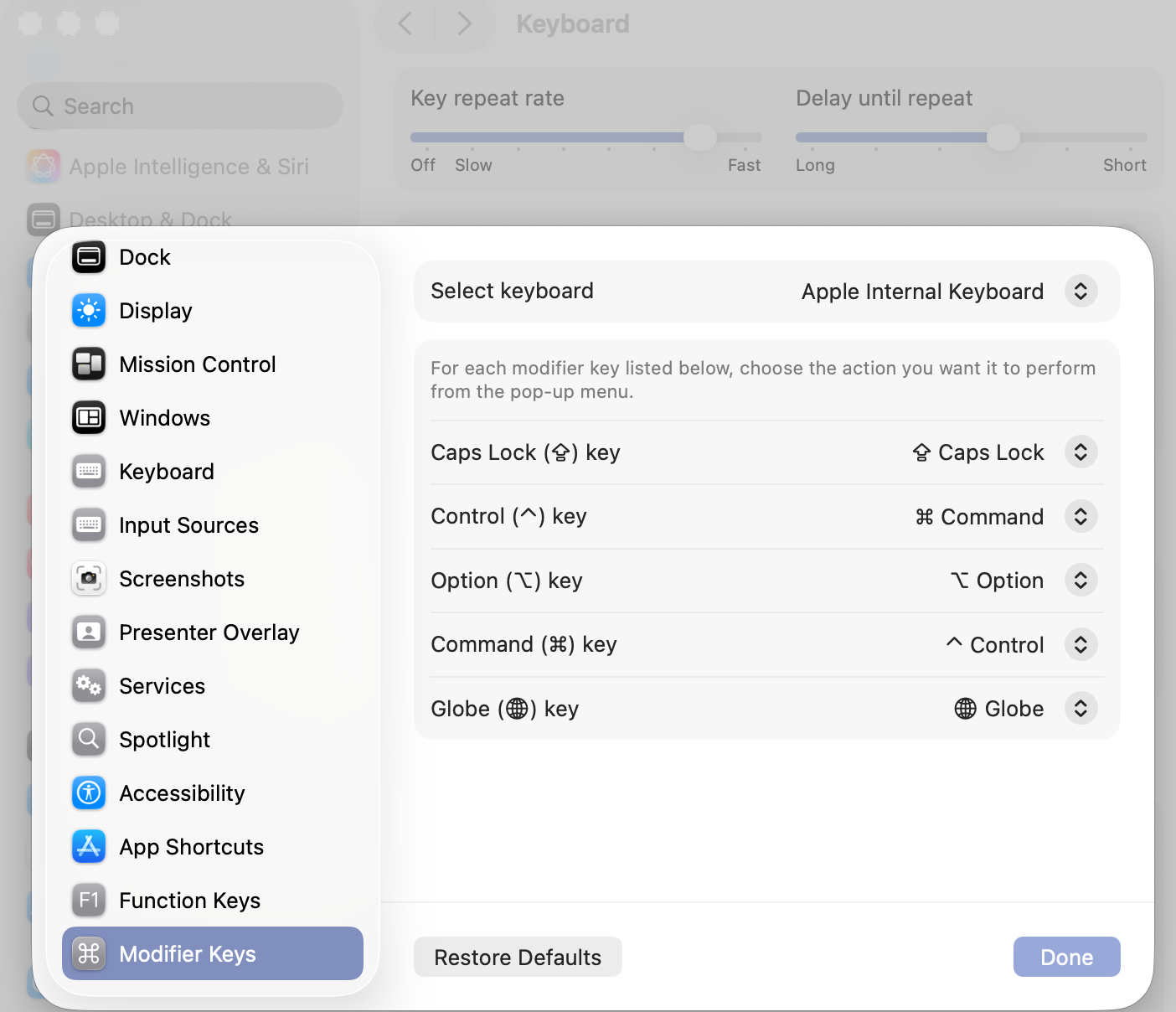
One issue remains then, but this applies to some Windows laptops as well. On Macbooks, the leftmost key in the bottom row is not Control, but Fn.
It’s probably impossible to get rid of the other macOS peculiarities, unless you create a full custom layout or redefine lots of shortcuts. You’ll have to remember that switching between running applications under macOS is done with Command+Tab (now Control+Tab, if you’ve switched them around), not Alt+Tab. Then there’s the lack of Pg Up/Dn/Home/End/Del buttons on Macs that require the combination of Fn or Command with the arrow keys. You can in fact make many things happening by combining Fn, Option, or Command with various other keys – have fun experimenting and remembering the useful ones! 🙂




One thought on “How to use Windows, Linux, and macOS without going crazy”